Design your store with the Theme Studio
A branded storefront with your logo, colours and home-page sections.
Before you start
- Your account must be approved — your store exists only after approval.
- Have your logo and any banner images ready (JPEG, PNG, WebP or SVG, up to 5 MB each).
Steps
-
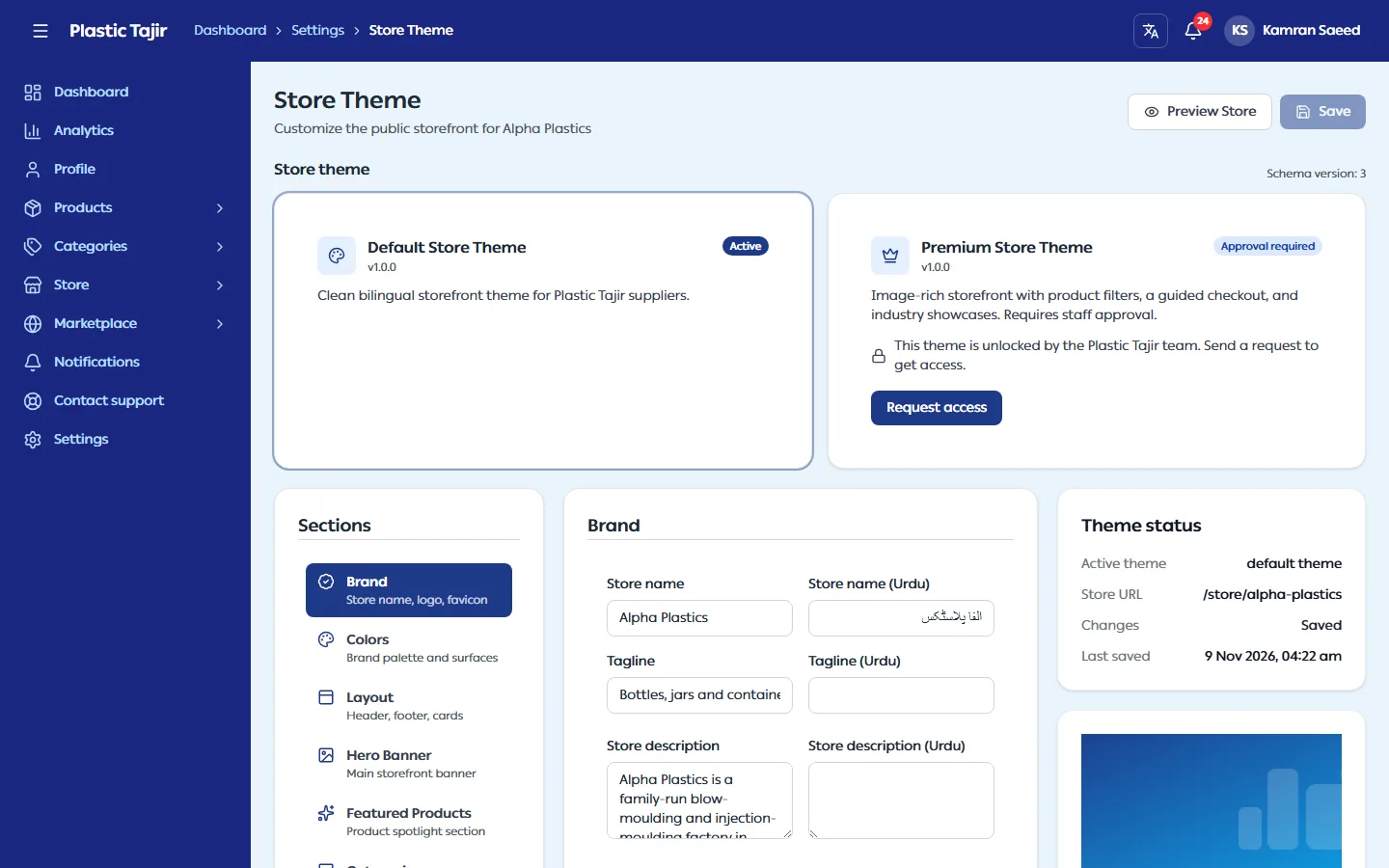
Go to Settings → Theme Settings. This opens the Store Theme page.
-
Pick a part of the store from the list on the left:
Section What you set Brand Store name, tagline, logo, favicon Colors Primary, secondary, accent, background, surface and text colours Layout Corner style and other layout options Hero Banner, Featured Products, Categories, About, Values, Process, Statistics, Testimonials, Trusted By, Portfolio, Contact, Footer Turn each home-page section on or off and fill in its headings, text and images in English and Urdu SEO The title and description that search engines and shared links show The premium theme adds more sections: Page banners, Hero highlights, Feature strip, Industries, Trust points and Call to action.
Statistics always shows your store's real number of products and categories — you can change the headings and background, but not the numbers. A number that is 0 is not shown, and the section is hidden until you have at least one product or category.
-
The panel on the right previews your colours and shows Unsaved while you have changes.
-
Click Save. You see "Theme saved to your store".
-
Click Preview Store to open your public store.
What happens next
Saved changes are live straight away — there is no separate publish step. Customers see the new design the next time they open or refresh your store.
Your store's web address
Your store's address is on the Your Store card of your dashboard. To change it, see Change your store URL.
Troubleshooting
| Problem | What to do |
|---|---|
| The browser warns you when leaving the page, or Leave without saving? opens when you click a menu link | You have unsaved changes. Click Stay and keep editing, then Save — or Leave page to discard them. |
| "Asset applied. Save to keep the change." | The image is uploaded but not saved yet. Click Save. |
| A section is missing from the list | Your current theme does not have it. Some sections exist only in the premium theme. |
| Text shows in English when the store is in Urdu | Fill in the Urdu fields of that section. |
| "Only a Google Maps embed link is allowed" under Map embed URL (Contact) | In Google Maps open your shop, choose Share → Embed a map and copy only the https://www.google.com/maps/embed?… address from the code. Other links cannot be shown in your store. |
| "SVG file could not be accepted" | The SVG uses features that are not allowed in a store image (for example entity declarations). Export it again as a plain SVG, or as PNG. Scripts and links inside an SVG are removed when it is uploaded. |