Suppliers
Answer messages from your store's contact page
Read the messages visitors send from your store's Contact page and reply to them.
Last reviewed 9 November 2026
Before you start
- Your store is live. Visitors open Contact from your store's menu, or Send us a message under your contact details. They do not need an account.
- Requests for a price on a product still come as RFQs — see Answer an RFQ.
Steps
-
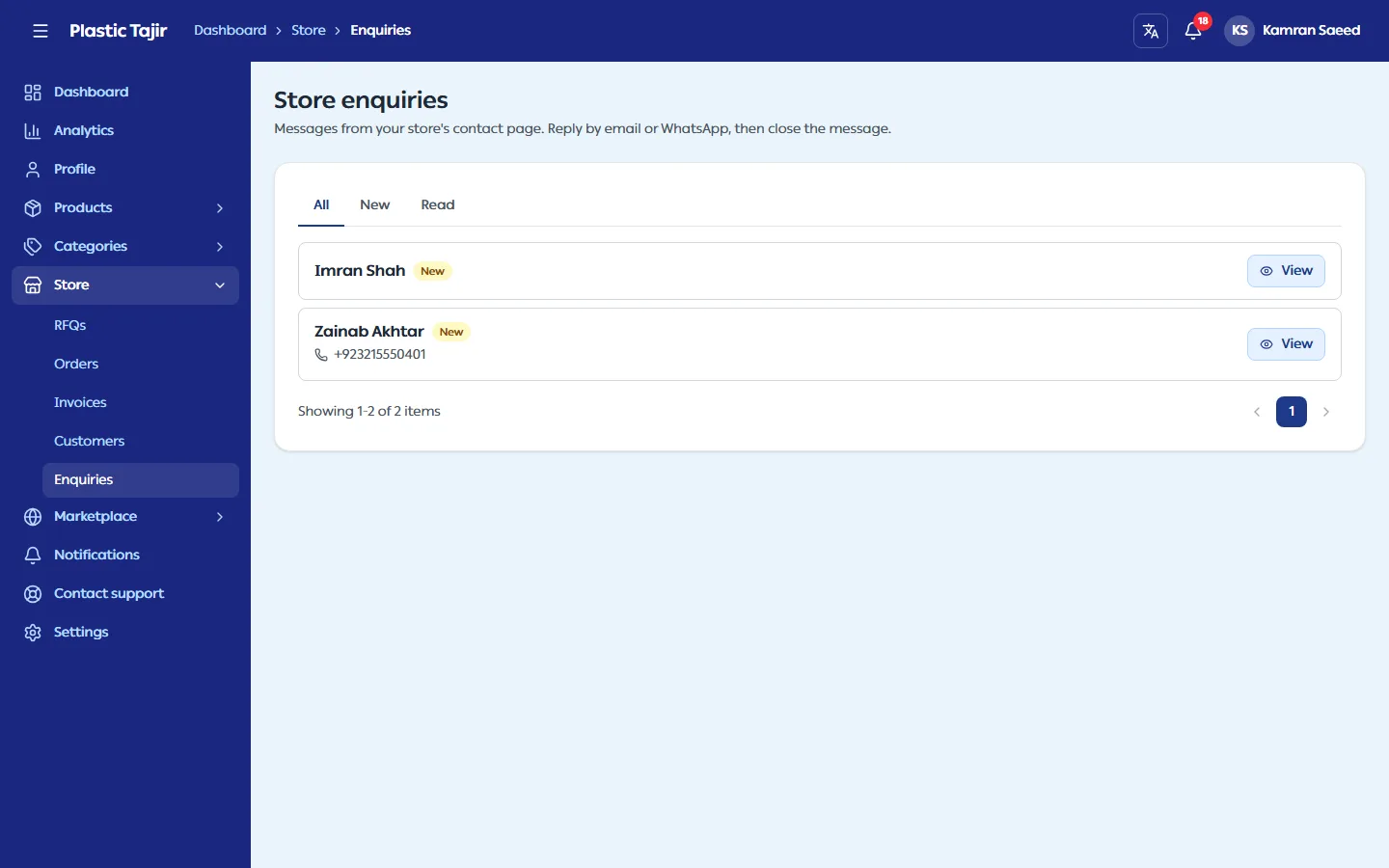
Go to Store → Enquiries. A notification "New enquiry from …" also brings you here.
-
Use the tabs All, New and Read. The list shows each sender's name, their WhatsApp number (when they gave one) and whether it is New or Read.
-
Click View to open the whole message. Opening a New message marks it as read. The window shows:
Item Meaning Name and Guest / Customer Customer = signed in to your store; Guest = no account Email, WhatsApp, subject, received time and message Everything they sent from the form Email / WhatsApp buttons How to reply -
Click the email button to open your mail app with "Re: subject", or the WhatsApp button to open the chat. There is nothing else to click: the message is already marked as read.
What happens next
- Replies happen in your email or WhatsApp; the visitor does not see a reply in the store.
- Read messages stay under Read and All.
Troubleshooting
| Problem | What to do |
|---|---|
| No email notification | The platform admin decides which notifications go by email or WhatsApp. You always get the in-app notification. |
| A message is about a product price | Ask the visitor to add the product to their cart and request a quote, so it becomes an RFQ you can quote. |