View your store customers
A view of who has registered on your store and what they have asked for.
Steps
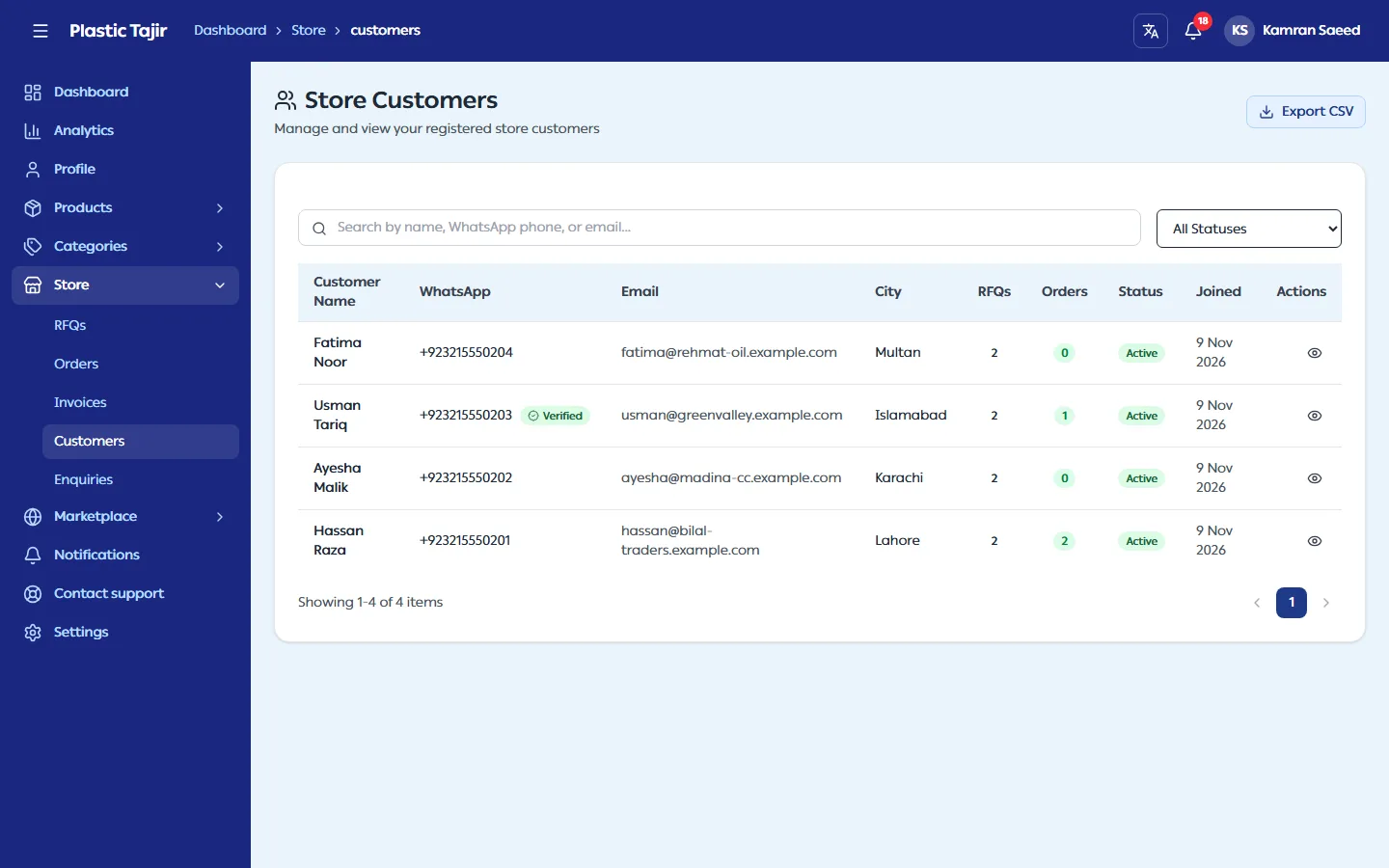
- Go to Store → Customers.
- Search by name, WhatsApp phone or email, or filter by status. Each row shows the customer's number of RFQs and orders.
- Click a customer to open their Customer Profile: contact details, delivery address, whether their WhatsApp is Verified, and their recent RFQs. Click an RFQ to open it.
Change a customer's email or WhatsApp number
- On the Customer Profile, click Edit contact.
- Change the Email and/or WhatsApp number, then click Save.
The new values are saved as verified, because you confirm them for the customer. Only change them once you know the new email or number is right (for example, the customer told you on a call). Customers cannot change a verified number themselves, so they will ask you.
Export your customers
Export CSV at the top of Store → Customers downloads every customer (name, WhatsApp, phone, email, city, RFQs, orders, status, joined date). It works while your store is suspended too.
Good to know
- Customers create and edit their own accounts on your store. Apart from email and WhatsApp (above), you cannot change their details.
- Accounts are per store: someone who buys from two stores has two separate accounts.
Related guides
Set up payments and record what customers pay
Your customers see how and where to pay you, your quotations carry payment terms, and you can see on every order what is paid, what is waiting for a cheque to clear and what is overdue.
Answer messages from your store's contact page
Read the messages visitors send from your store's Contact page and reply to them.