Suppliers
Answer an RFQ with a quotation
A priced quotation sent to a store customer who asked for one.
Last reviewed 9 November 2026
An RFQ (request for quotation) is what a customer sends when they submit their cart on your store.
Steps
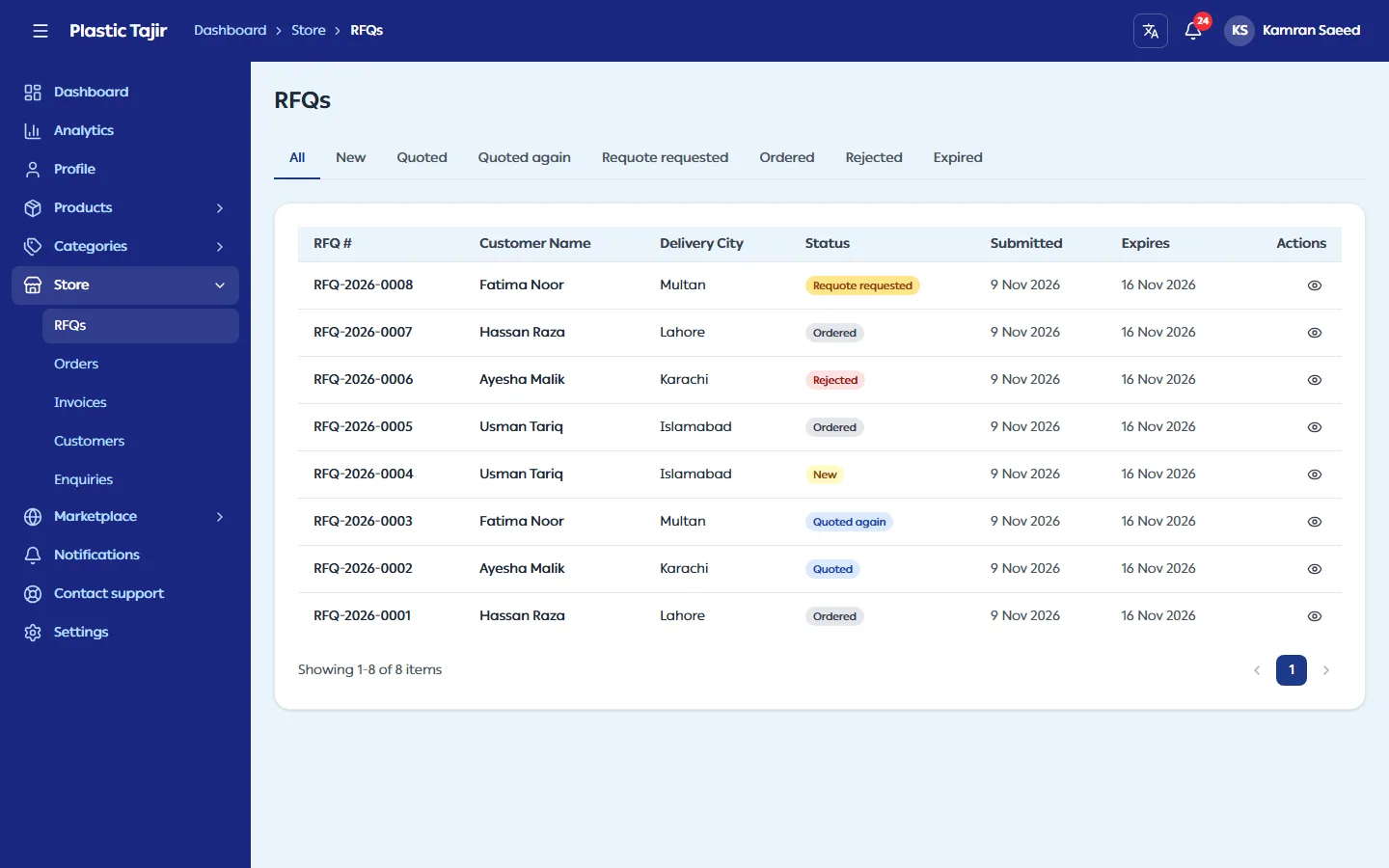
- Go to Store → RFQs. New requests have the status New. Click one to open it.
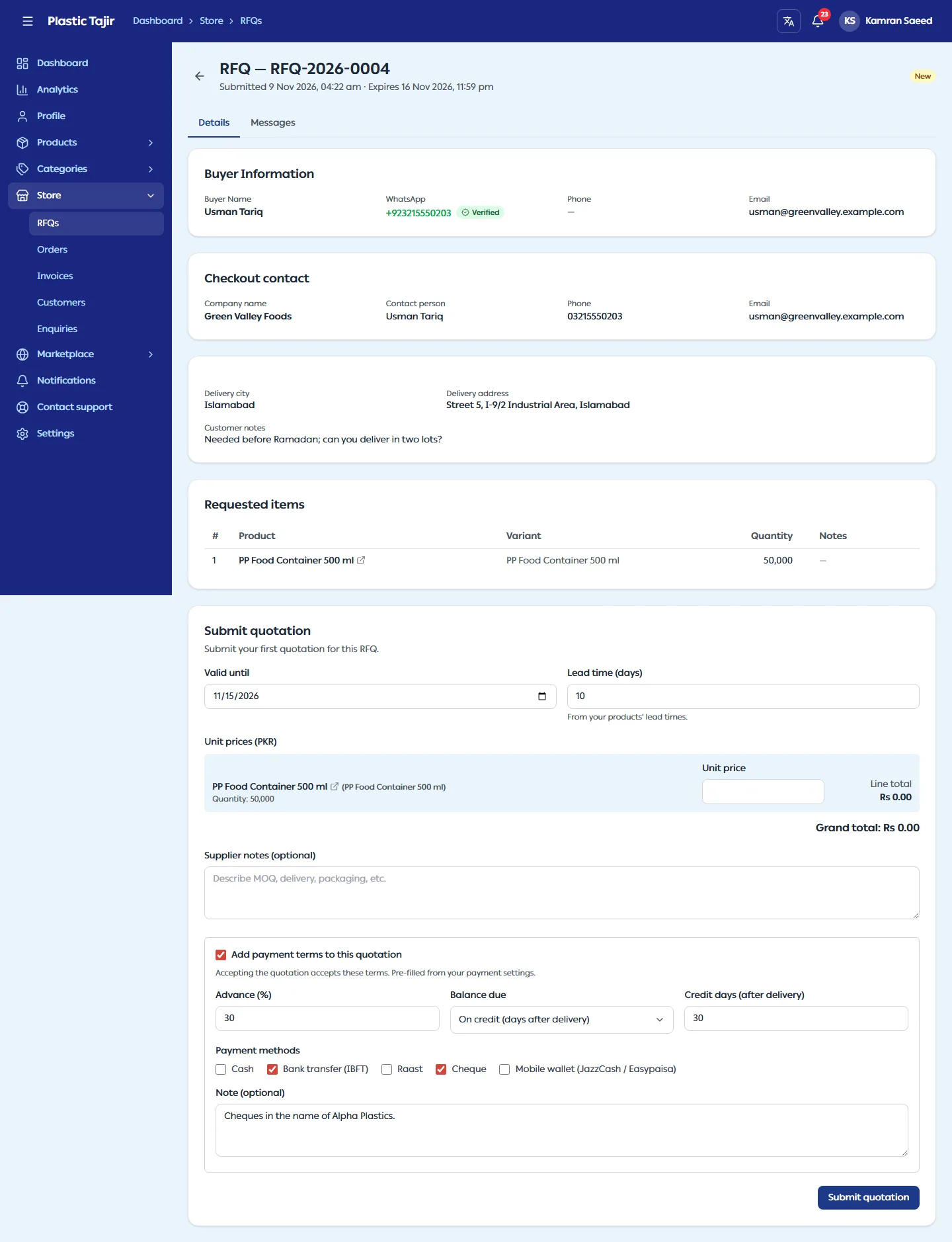
- Read the Details tab:
- Requested items — the product, variant and quantity of each line. Click a product name (here, in the quotation form, in a quotation version or on an order) to open your product page in a new tab, so a quotation you are typing is not lost.
- Buyer Information and Checkout contact — the customer's name, company, WhatsApp (with a Verified badge once the customer has verified it), phone and email.
- Delivery city, Delivery address and Customer notes.
- Expires — an RFQ closes 7 days after it was sent.
- In Submit quotation, enter a Unit price in PKR for each line (you can change the quantity), Valid until (today up to one year ahead), Lead time (days) and optional Supplier notes. The total is calculated for you. Lead time starts from your previous quotation on a requote; otherwise from the longest lead time of the requested products ("From your products' lead times"), or 7 days when none is set. Change it for this order; the value you send is the one the customer relies on. A line the customer asked for below the product's minimum order shows Below MOQ in Requested items; quote it or explain in your notes.
- Check Payment terms (advance, when the balance is due, methods). They are filled in from Settings → Payments; change them for this customer or untick the box to send none. Accepting the quotation accepts them — see Set up payments.
- Click Submit quotation.
Talk to the customer
Use the Messages tab to ask questions or share files: up to 3 files per message, 10 MB each, JPEG, PNG, WebP or PDF. The conversation stays open until the order is completed.
What happens next
The customer gets a notification and can:
| Customer action | What you see | What you do |
|---|---|---|
| Accepts | The RFQ becomes Ordered and a new order appears under Store → Orders | Confirm the order |
| Rejects | The RFQ shows Rejected: "The customer rejected your previous quotation. Submit a new version below." Customer's response at the top of the RFQ shows their reason (if they gave one) and that you can still send another quotation for them to review, until the RFQ expires. The reason also shows next to that version in Quotation history and when you click View on it | Send a new version if you want to |
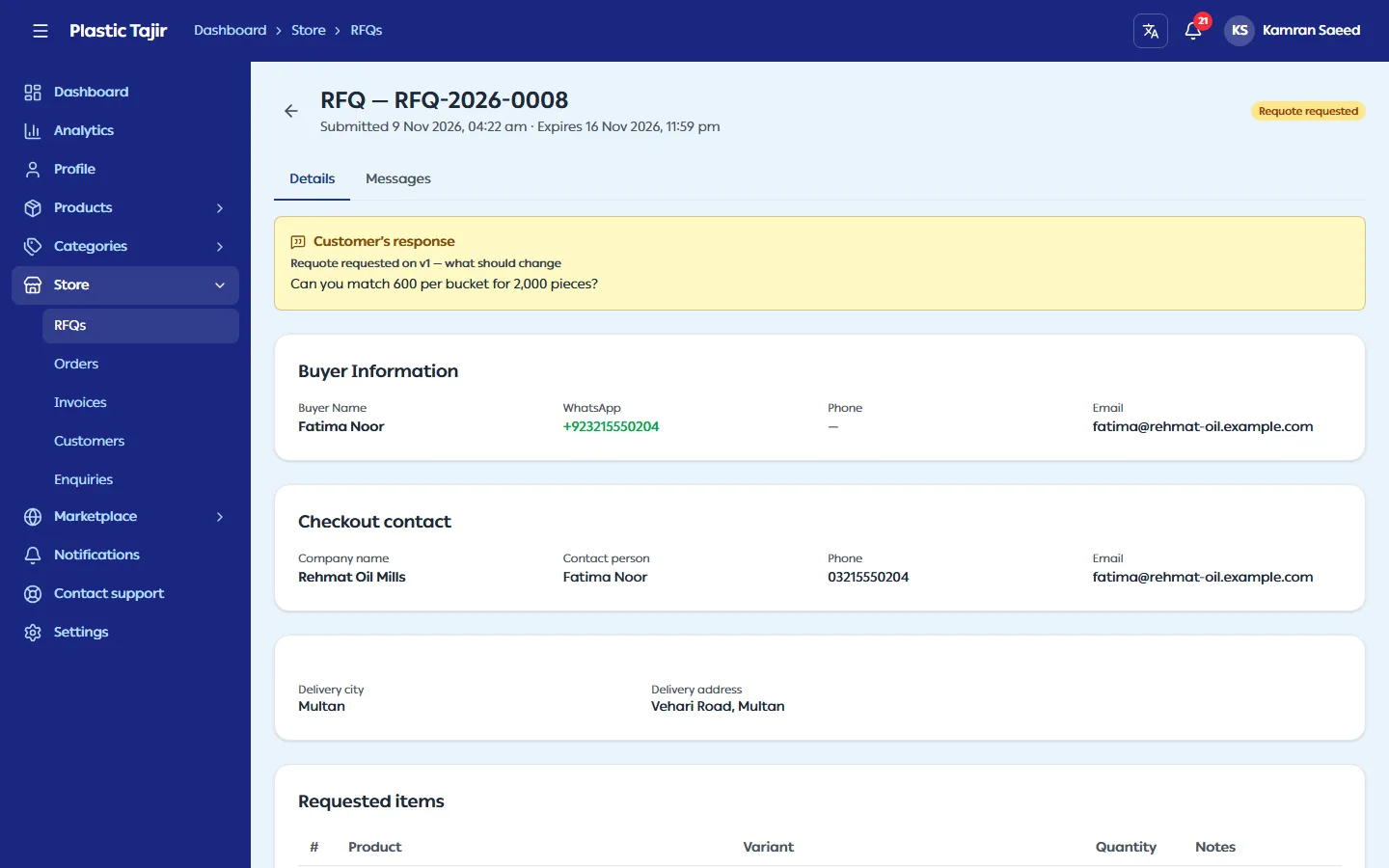
| Requests a requote | The RFQ shows Requote Requested; the customer's "what should change" note shows at the top of the RFQ under Customer's response, next to that version in Quotation history, and when you click View on it | Send an updated quotation — the form starts with your previous prices, lead time and notes |
Every version is kept under Quotation history; only the newest one is active.
Once you send a new version after a rejection or a requote request, the RFQ shows Quoted again (instead of Quoted) until the customer responds. Use the Quoted again tab on Store → RFQs to find them; the dashboard counts them under Quoted again.
Troubleshooting
| Problem | What to do |
|---|---|
| "Your quotation is with the customer…" | Wait for them to accept, reject or ask for a requote. |
| "This RFQ has expired and can no longer be quoted." | The 7 days have passed. The customer can send a new RFQ. |
| "This RFQ thread is closed. Messages are read-only." | The order is completed. |
| "Too many messages. Try again in …" | Wait the number of seconds shown, then send again. |