Manage orders and print invoices
An accepted order taken from confirmation to completion, with an invoice for the customer.
Steps
-
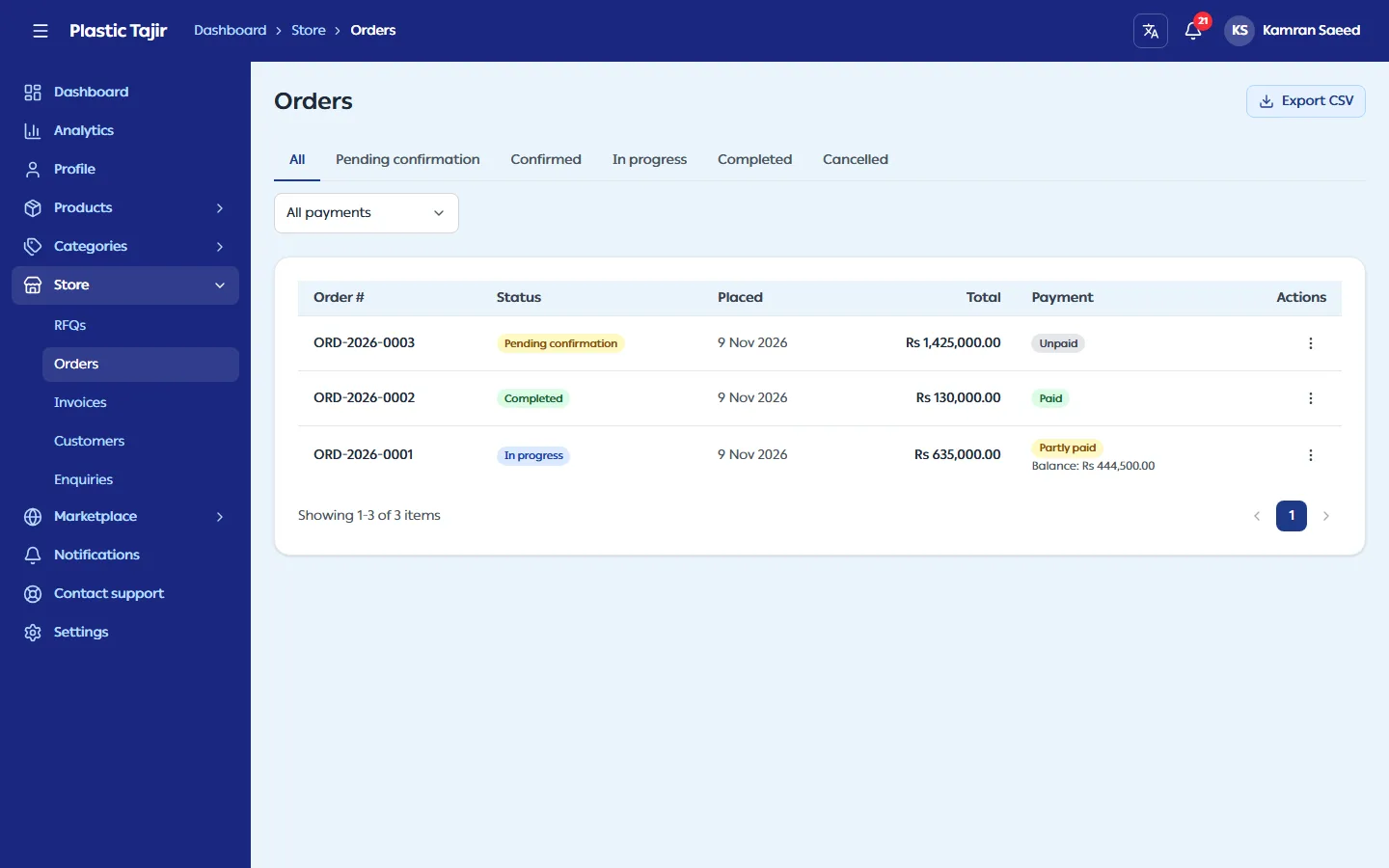
Go to Store → Orders and open the order (or use the ⋯ menu on its row).
-
Move it forward one step at a time:
Order status Button What it means Pending confirmation Confirm order You accept the order. The invoice is created now. Confirmed Start fulfilment You are producing or preparing it. In progress Mark completed Delivered. The RFQ's message thread closes. Confirm order and Mark completed cannot be undone, so each asks you to confirm in a dialog first.
-
To cancel, click Cancel order. A dialog opens: enter an optional Reason (the customer sees it on their order) and click Confirm cancel, or Keep order to close it. You can cancel at any point before the order is completed. A cancelled order cannot be reopened. An order cancelled before you confirm it has no invoice.
Payments
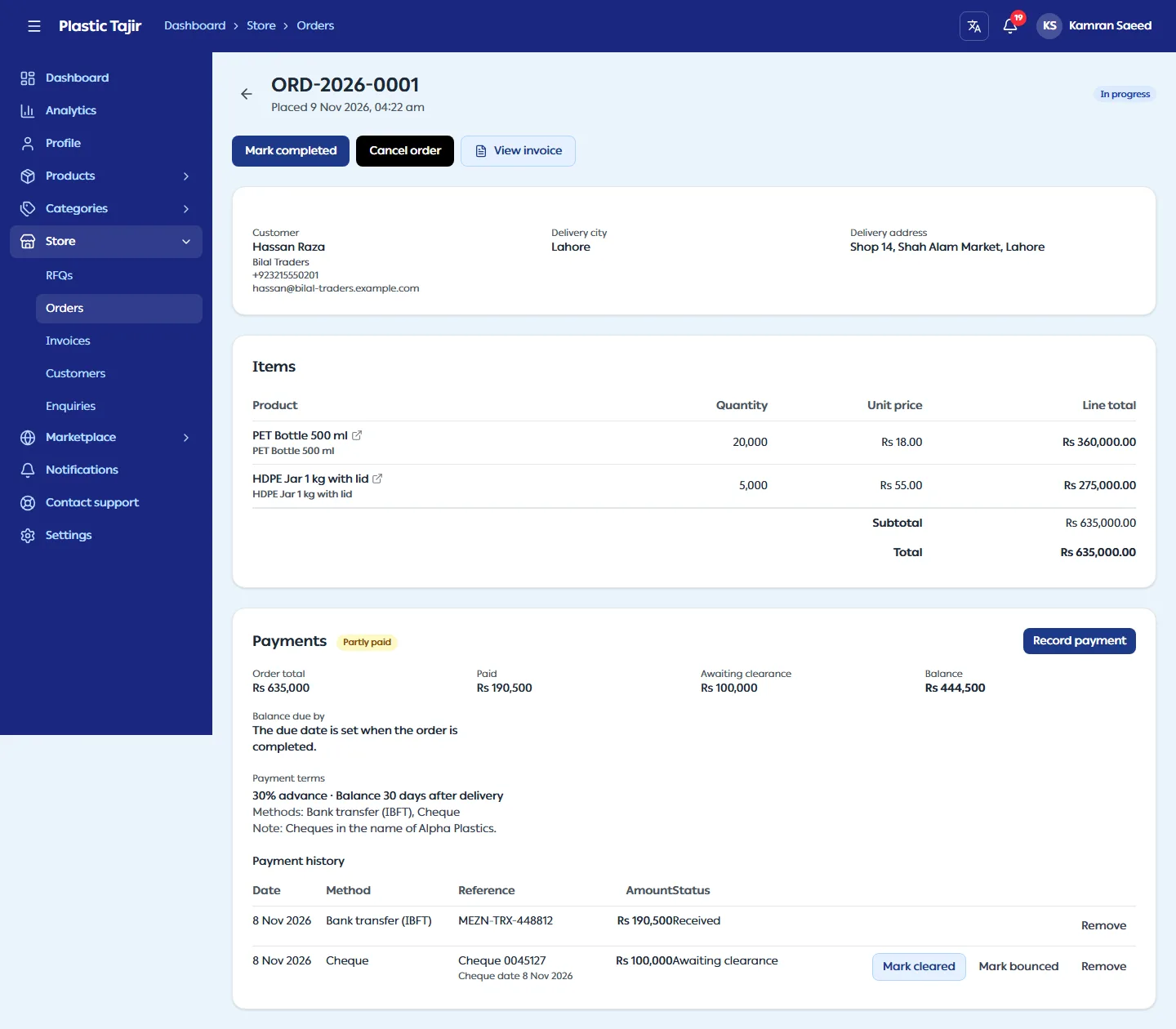
Once the order is confirmed, record what the customer pays in the order's Payments panel: paid, balance,
cheques awaiting clearance and overdue. Payment never changes the order status. Every payment you record gets a
numbered payment receipt (RCP-2026-0001): click its number in the Receipt column to open and print it, or
send the printout to the customer. See Set up payments and record what customers pay.
Invoices
- Go to Store → Invoices, or use the invoice link on a confirmed order.
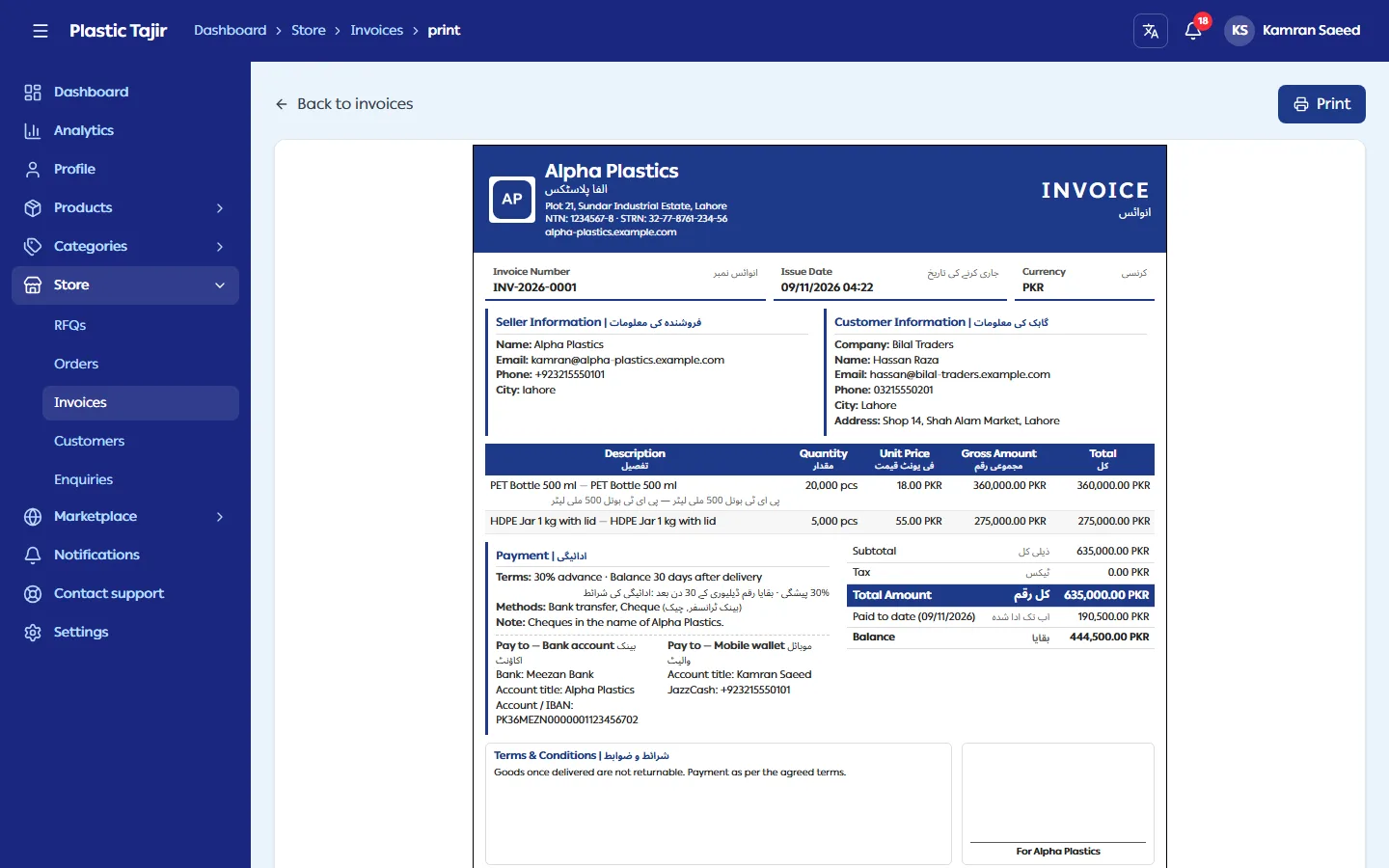
- Open an invoice to see the print view, then click Print. Choose Save as PDF in the print dialog to get a PDF file. A normal invoice (up to about 12 items with payment details) fits on one A4 page; a longer one continues on a second page with the column headings repeated.
- Amounts are in PKR. There is no tax line in this version.
- The invoice shows the payment terms, the accounts to pay into (as they were when you confirmed), and what is paid to date.
- To add your logo, colour, NTN / STRN, terms or stamp, see Design your invoice. Each invoice keeps the design it was created with.
Export your orders and invoices
Store → Orders and Store → Invoices have an Export CSV button. It downloads all your orders (or invoices), not just the page on screen, as one file Excel opens with Urdu names intact. It works while your store is suspended too.
What happens next
The customer is notified at each step and sees the order and its invoice in their store account.
Related guides
Answer an RFQ with a quotation
A priced quotation sent to a store customer who asked for one.
Set up payments and record what customers pay
Your customers see how and where to pay you, your quotations carry payment terms, and you can see on every order what is paid, what is waiting for a cheque to clear and what is overdue.