Notifications, language and password
Stay on top of new activity and set up your account the way you like.
Notifications
- The bell at the top shows how many notifications you have not read. Click one to go straight to the RFQ, order or invoice it is about; it is then marked as read.
- Notifications in the menu shows the full list. Filter by event type (RFQ submitted, quotation accepted, order confirmed, message sent, RFQ expiring soon, …) or by priority, and use Mark All as Read.
- Opening an RFQ, order or invoice directly also clears its notifications.
- New notifications appear within about 30 seconds.
Language
Use Settings → Language Settings or the language button at the top. Urdu switches the screen to right-to-left.
Password
Go to Settings → Password Update, enter your current password and a new one (at least 8 characters).
Store policies
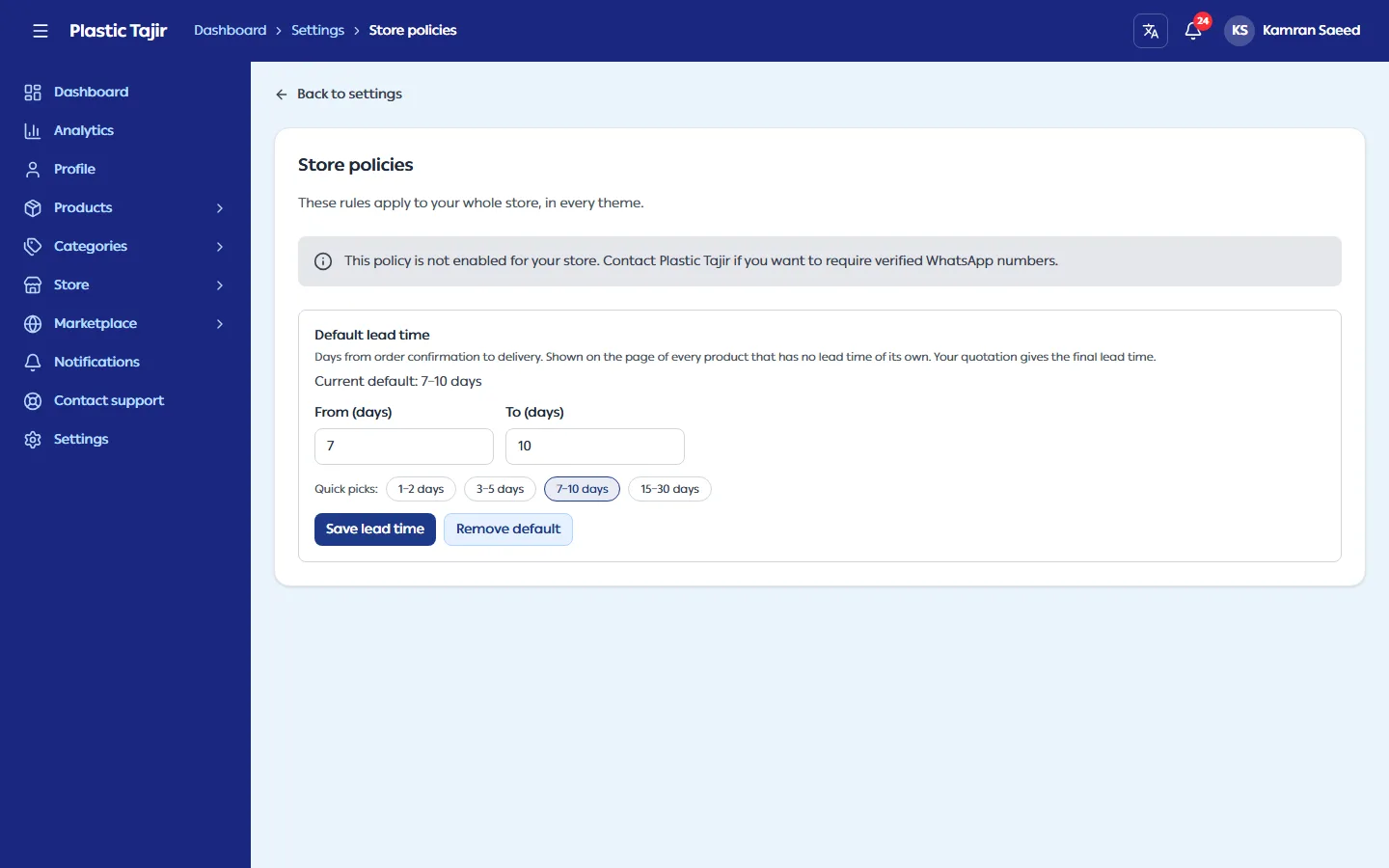
Settings → Store policies holds the rules for RFQs from your store and your products' default lead time.
-
Default lead time: the usual number of days from order confirmation to delivery for every product that has no lead time of its own. Enter From and To days (1–365) or click a quick pick, then Save lead time. Remove default clears it; products without their own lead time then show none. Customers see it on the product page; your quotation still gives the final lead time. While your store is suspended you can see it but not change it.
-
Require a verified WhatsApp number before an RFQ: when it is on, a buyer must verify their WhatsApp number with a code before the request is sent. Checkout shows them a notice and a verify window, and their cart is kept. The rule applies in every store theme.
-
The switch appears only when Plastic Tajir has enabled this policy for your store. Otherwise you see "This policy is not enabled for your store". If Plastic Tajir turns the permission off later, your choice is kept but not applied.
-
While WhatsApp verification is switched off for the whole platform, the WhatsApp rule is not shown on Store policies and is not applied; your choice is kept for when it is switched on again. The default lead time is always available.
Good to know
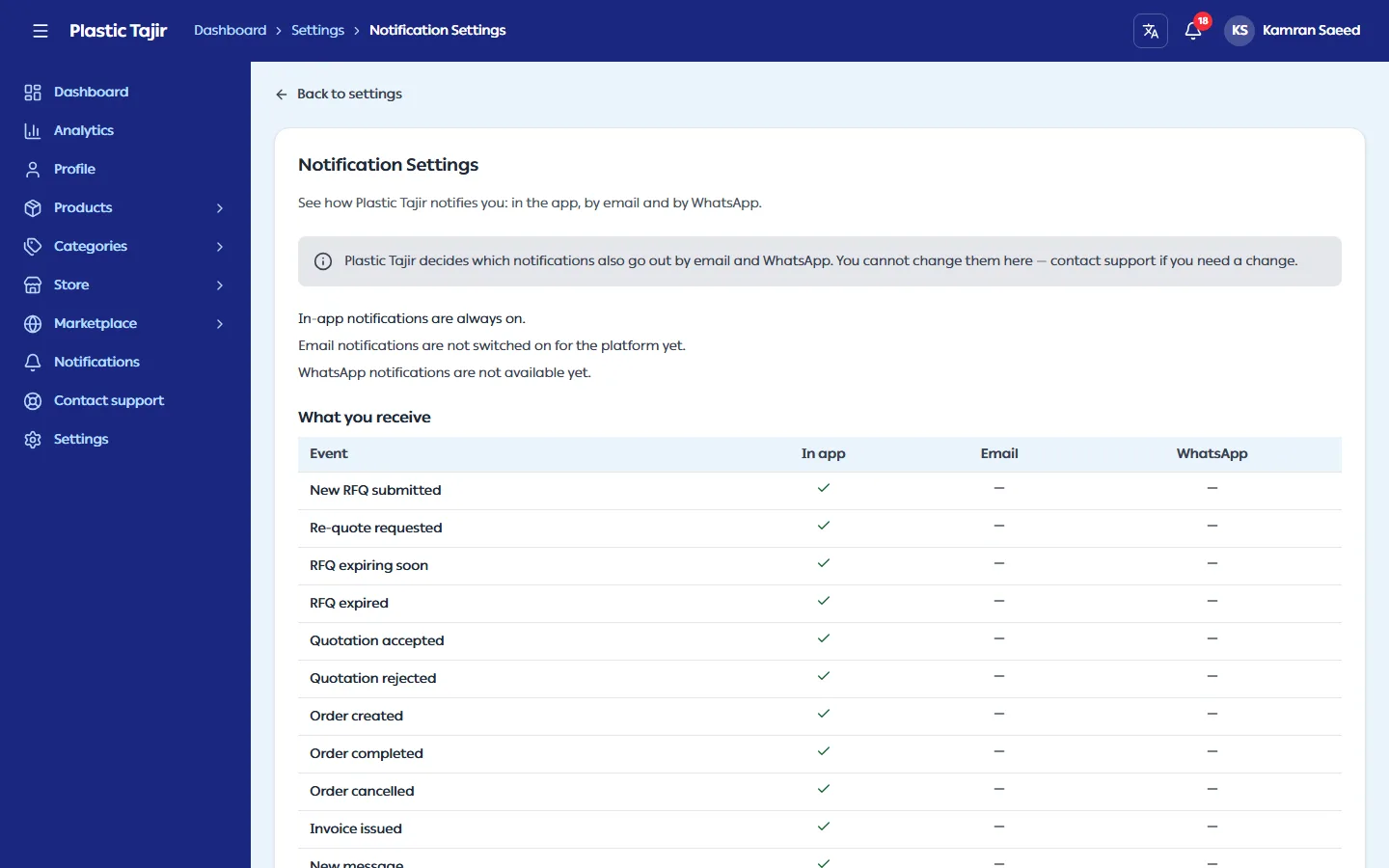
Settings → Notification Settings shows how Plastic Tajir notifies you. You cannot change it there:
- In-app notifications are always on.
- What you receive and What your store customers receive list each event with a tick for In app, Email and WhatsApp. Plastic Tajir decides which events go out by email or WhatsApp, and turns email / WhatsApp on or off for your store. Contact support if you need a change.
- WhatsApp messages go only to verified numbers. While WhatsApp verification is on, the page warns you if your own number is not verified yet.
- Account emails, such as sign-up and password-reset codes, are always sent.
Admins and moderators see the same page with the staff events (new supplier registration, new theme request). Admins change them in System settings → Notification channels. A moderator who cannot manage suppliers does not receive staff notifications, and the page says so.