Set up payments and record what customers pay
Your customers see how and where to pay you, your quotations carry payment terms, and you can see on every order what is paid, what is waiting for a cheque to clear and what is overdue.
Plastic Tajir never takes or holds money. Customers pay you directly, the way they do today: cash, bank transfer, Raast, cheque, pay order or JazzCash / Easypaisa. Plastic Tajir keeps the record.
1. Set up payments (once)
-
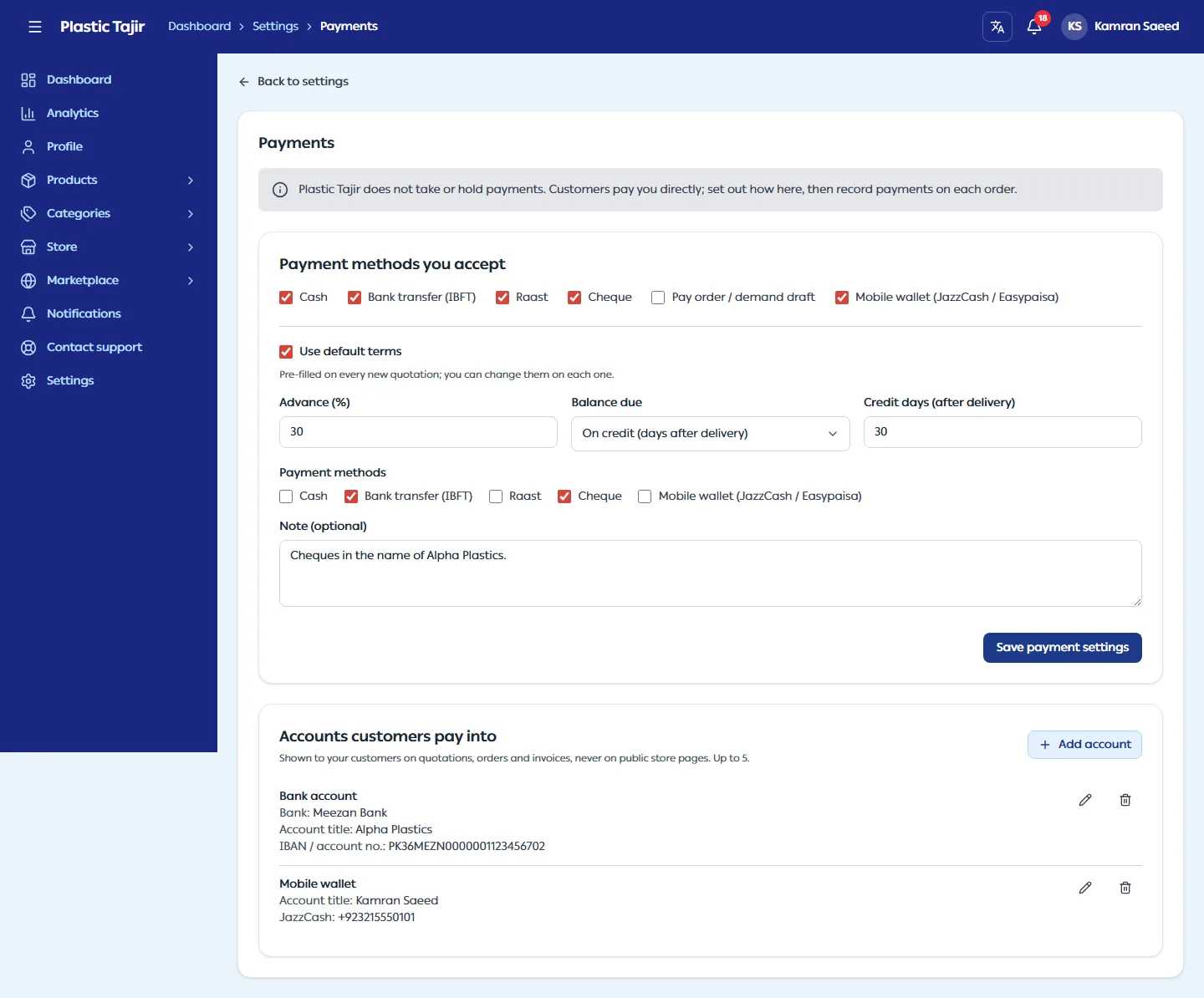
Go to Settings → Payments.
-
Under Payment methods you accept, tick the methods you take.
-
Optional: tick Use default terms and fill in your usual terms. They are filled in on every new quotation and you can change them each time.
Field What to enter Advance (%) How much the customer pays before you start. 0= no advance,100= full payment in advance.Balance due Before delivery, On delivery, or On credit Credit days Only for credit: days after delivery the customer has to pay (1–180). Credit counts from the day you mark the order completed. Payment methods The methods for this deal Note Anything else, e.g. "Cheques in the name of Ali Plastics" -
Click Save payment settings.
-
Under Accounts customers pay into, click Add account for each bank account (IBAN), Raast ID or mobile wallet. Untick Show to customers to keep an account without showing it. Up to 5 accounts can be shown to customers; once 5 are shown, Add account still works, but the new account is saved hidden (the form says so) — hide or remove another account first if you want it shown. If a field is wrong (for example the IBAN), its message shows under that field.
Customers see these accounts on your quotations, orders and invoices, never on your public store pages.
2. Payment terms on a quotation
When you Submit quotation, the Payment terms section is filled in from your defaults. Change them for this customer if needed, or untick Add payment terms to this quotation to send none. The customer sees the terms next to the price; accepting the quotation accepts its terms.
3. Record payments on an order
Open the order (Store → Orders). Once you have confirmed it, the Payments panel shows the total, what is paid, the balance, the advance still due and the date the balance is due.
- Click Record payment. The amount is filled in with the advance still due (or the balance).
- Choose the Method, the Date received, and add a Reference (transaction ID, cheque or pay order number). For a cheque, add the Date on the cheque.
- Click Record payment. The customer is notified, and the payment gets its receipt (see Payment receipts below).
| Situation | What to do | Result |
|---|---|---|
| A cheque or pay order cleared | Mark cleared | It now counts as paid. Until then it shows Awaiting clearance. |
| A cheque bounced | Mark bounced, optionally say what happened | It never counts; the amount is due again; the customer is notified. |
| You typed something wrong | Remove and give a reason, then record it again | The entry stays in the history, struck through and marked Removed with your reason. Its receipt shows VOID. The customer is notified. |
Payment never changes the order status: you can complete an order that is still unpaid (goods on credit).
Payment receipts
Every payment you record gets its own numbered receipt (RCP-2026-0001, numbered per year, never reused), so you
no longer write one by hand. It is made when you record the payment, and it uses your invoice design (logo, colour,
NTN / STRN, stamp), so it matches your invoices. It shows who paid, the invoice and order, the amount in figures and
in words (English and Urdu), the method and reference, and what was paid before and what is left.
Open it from the Receipt column of the order's payment history, then click Print. The customer can open the same receipt from their order and from the notification.
| Mark on the receipt | What it means |
|---|---|
| (no mark) | A normal receipt for money received. |
| Subject to clearance | A cheque or pay order received for collection. It counts only once it clears. |
| Cleared | The cheque or pay order cleared. It is the same receipt, now marked Cleared on the date. |
| Cancelled | The cheque bounced. The receipt is stamped CANCELLED and is no longer proof of payment. |
| Void | You removed the payment. The receipt is stamped VOID with your reason. |
The figures on a receipt are fixed when it is issued; only the mark changes later. Because the customer sees your reason for removing a payment on the payment and on its receipt, write it so you are happy for them to read it.
Find who owes you
On Store → Orders, the Payment column shows Unpaid, Partly paid, Paid or Overdue. Use the payment filter to list, for example, only Overdue orders: completed orders with a balance left after the due date. The Export CSV file has the payment status, paid, balance and due date of every order.
Troubleshooting
| Problem | What to do |
|---|---|
| Record payment is missing | Confirm the order first; payments start once the invoice exists. It is also hidden once nothing is left to record (a pending cheque counts as recorded). |
| "This payment is more than the balance left on the order" | Lower the amount; cheques awaiting clearance count against the balance. |
| "This payment method is not accepted by the store" | Tick the method in Settings → Payments, or use one of the order's methods. |
| A receipt shows VOID or CANCELLED | The payment was removed or the cheque bounced. Record the payment again if money was really received. |
| Everything is greyed out | Your store is suspended; you can read but not change payments. |