Add and manage your products
Products in your catalogue that customers can browse and add to a request for quotation.
Before you start
- The product's category must exist. If it does not, request a new category.
- Product images: JPG, PNG or WebP, up to 10 MB each. The image counter shows how many a product may have (set by Plastic Tajir, at most 8).
Add a product
-
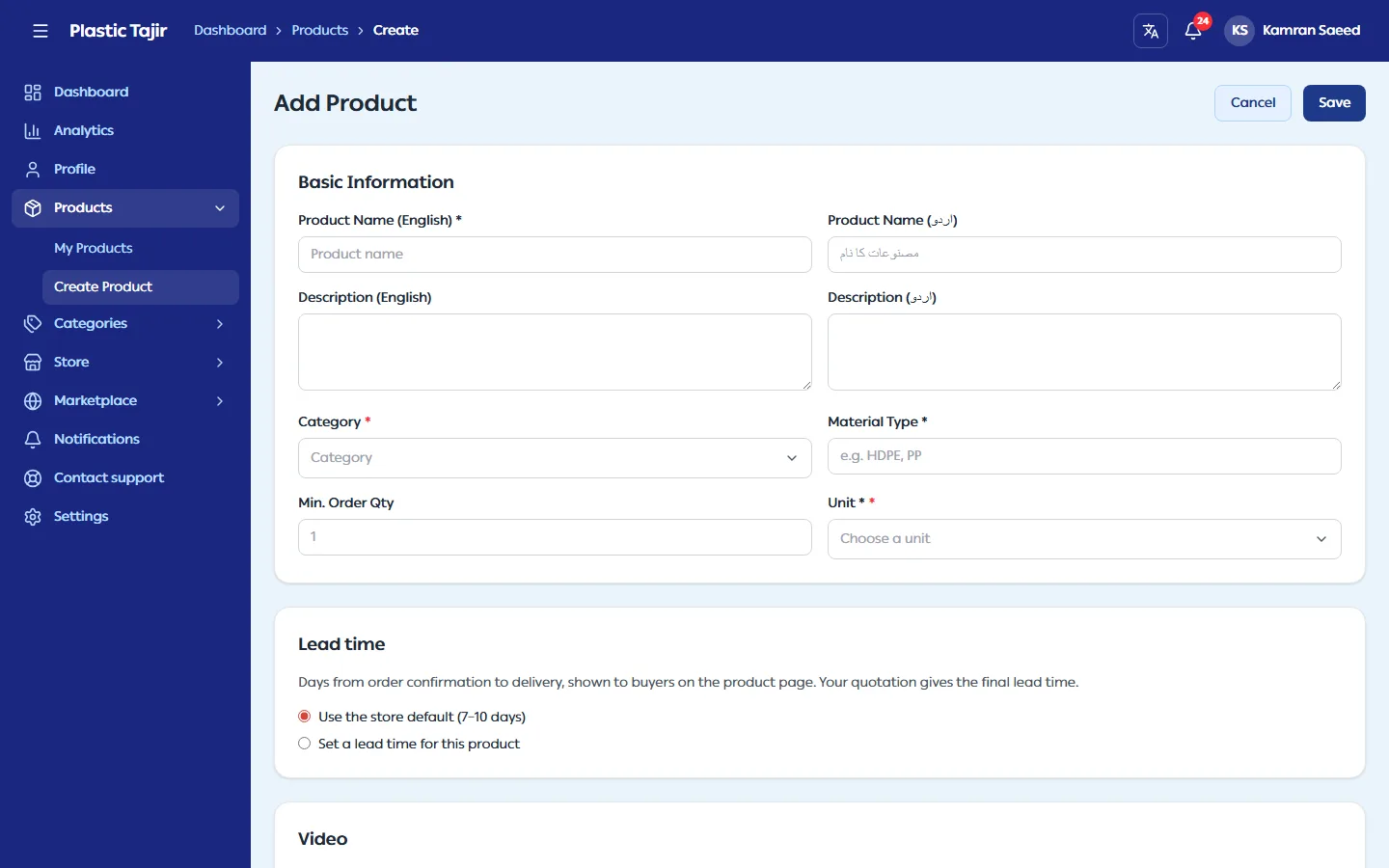
Go to Products → Create Product.
-
Fill in Basic Information:
Field What to enter Category * The category the product belongs to Product Name * English name (Urdu name optional) Description English and Urdu Material Type * For example HDPE, PP, PVC Unit * Pick one: pieces (pcs), kilogram (kg), meter, roll, pack or ton Min. Order Qty Optional; shown to customers as guidance, not enforced -
Add Images. The first image is the main picture. You can click Save while images are still uploading: the button shows Uploading images (… left) and saves once they finish. If an image fails, Save stops — click Retry or remove it, then save. Optional Video: one MP4 or WebM file up to 25 MB (iPhone
.movfiles are not accepted — export them as MP4). On the product page it is the last item in the image list, with a play icon; tick Show the video first on the product page to put it first. Use the primary image as the video thumbnail (on by default) shows your first image on the video until the customer presses play; untick it to show the video's first frame. Product lists always show your first image. The video never plays by itself: the customer presses the play button on it, and can pause, move through the video, mute it or watch it full screen. -
Optional Storefront details: product type (raw material, finished product or packaging), a badge (Popular, New, Best selling), key features and applications. A list with nothing in it opens with one empty row, ready to type into. A list you have already filled in is collapsed when you edit: click the row to open it, or click Add item (a new row is added only when the existing ones are filled in). Both store themes show key features and applications on the product page; on the premium theme the product description also shows your gallery images.
-
Lead time: the usual number of days from order confirmation to delivery, shown to customers on the product page. Leave Use the store default selected to use the range set in Settings → Store policies (the option shows it, for example 7–10 days; if your store has none, nothing is shown and a Set a default link takes you there). Or choose Set a lead time for this product and enter From and To days (1–365), or click a quick pick such as 3–5 days. Your quotation still gives the final lead time for each order.
-
Click Save. You see "Product created successfully" and the product page opens.
A default variant is created for you, so customers can add the product to their cart straight away.
Add variants (sizes, colours, grades)
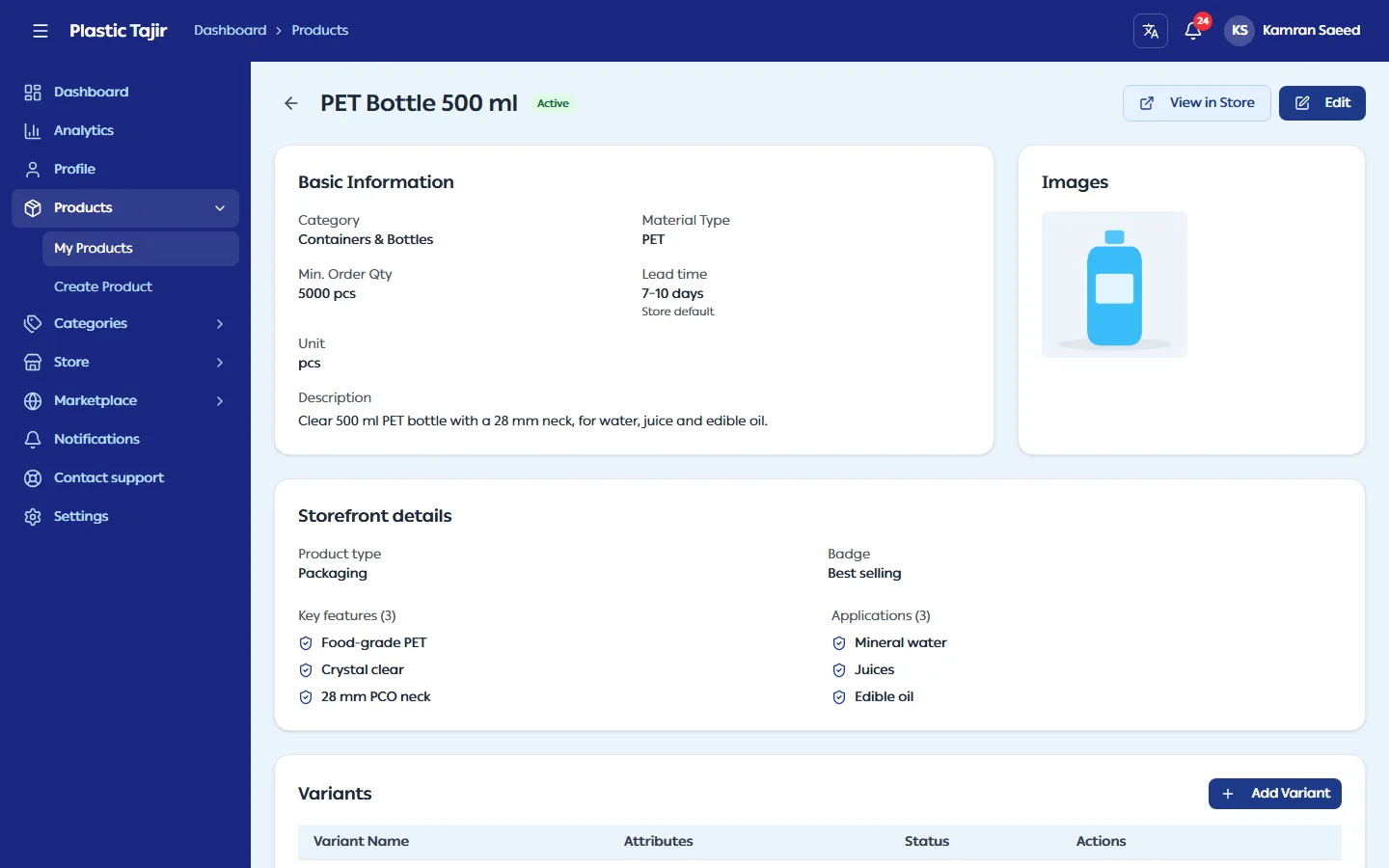
- Open the product from Products → My Products.
- Click Add Variant. Enter the variant label (for example Large Black) and, optionally, Specifications as
key and value pairs (for example
size=Large). Keep Active on catalog ticked. - Save. Edit or delete a variant from the same list.
A product always needs at least one active variant, so customers can add it to their cart. You cannot delete or deactivate the last active one — add another variant first. To stop selling a product, untick Visible on store (or delete the product) instead.
Edit, hide or delete a product
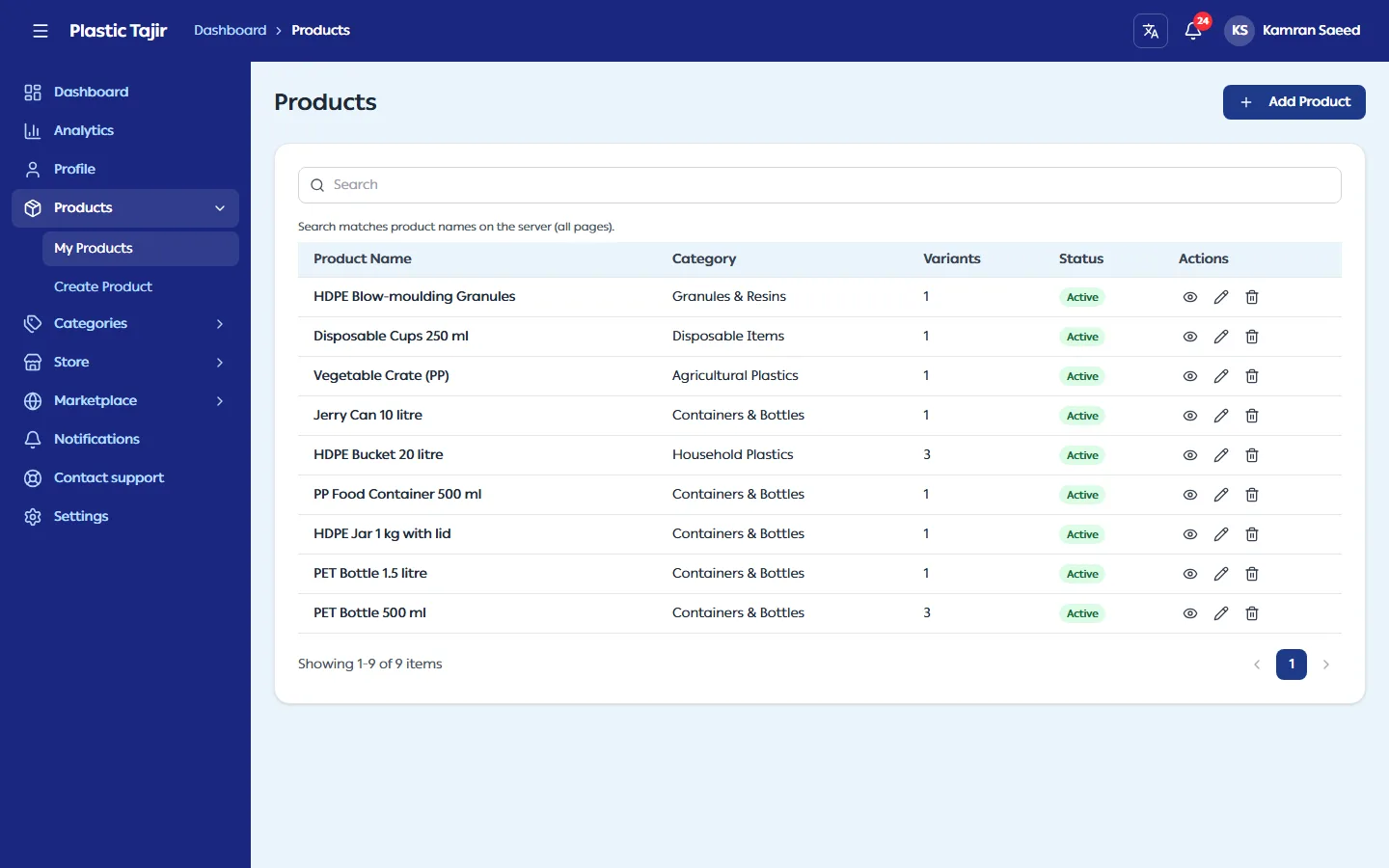
- Edit Product changes any field, the images or their order. Changes are live at once; no re-approval is needed.
- Untick Visible on store to hide a product from your store without deleting it.
- Delete (in My Products) removes the product and its variants from your catalogue. RFQs and orders you have already received keep their own copy of the product details.
What customers see
Products appear on your store's Products page and in their category. Prices are never shown on the store: customers send an RFQ and you reply with a quotation.
The product page shows Lead time (for example Lead time: 7–10 days, "usual time from order confirmation to delivery; the quotation confirms it") when the product or your store has one. Your product page in the dashboard shows the same value and whether it is the product's own or the store default.
Troubleshooting
| Problem | What to do |
|---|---|
| "Please fill all required fields" | Fill in every field marked *. |
| "You can upload at most … images." | The product has reached the image limit. Remove an image first. |
| The product is not on the store | Check Visible on store and that at least one variant is active. |