Find products and request a quote
A request for quotation (RFQ) sent to the supplier for the products you need.
Prices are not shown on the store. You choose products and quantities, send them as an RFQ, and the supplier replies with a priced quotation.
Find products
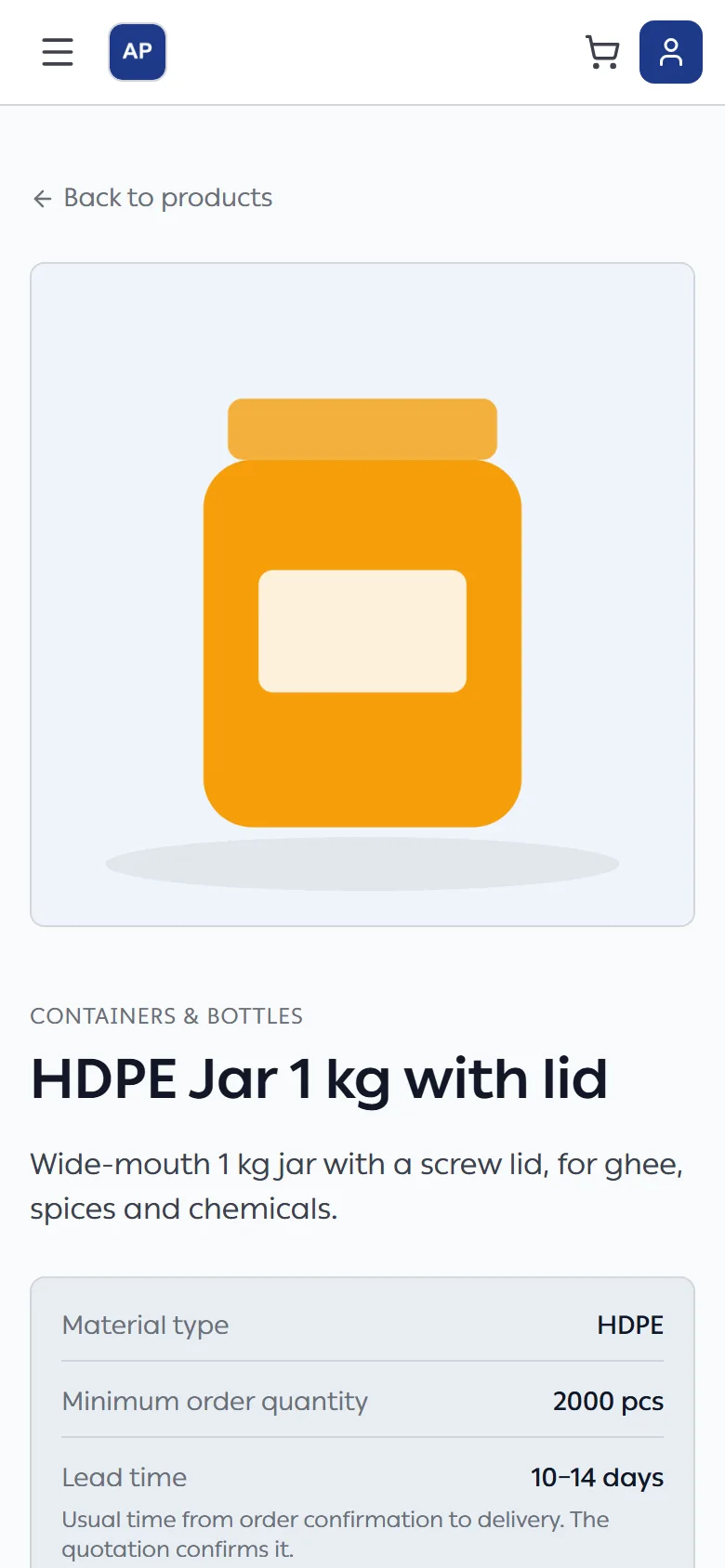
Each store has its own design. The two store themes look like this:
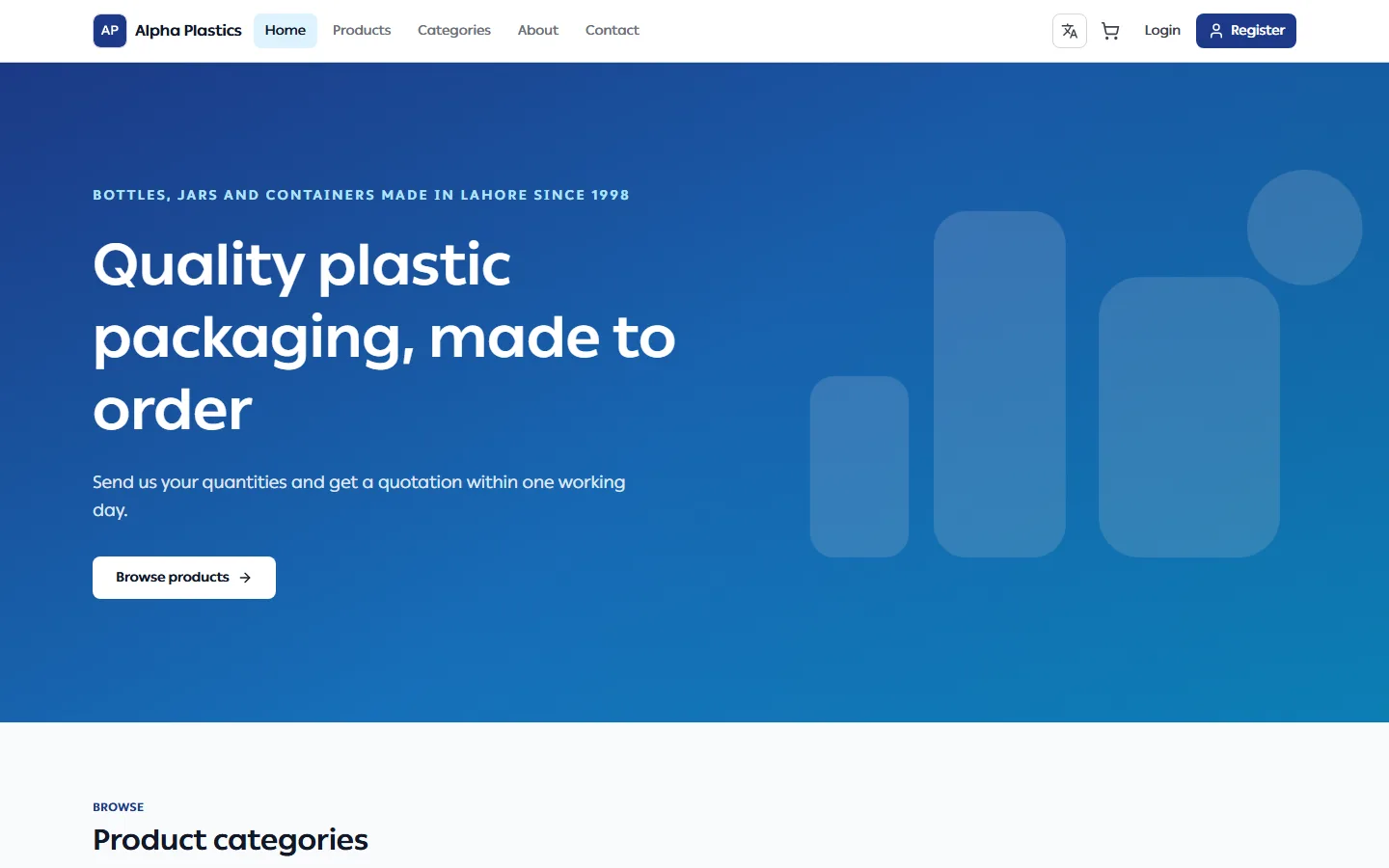
- Products lists everything in the store, and you can narrow it by category. Stores on the Premium theme also let you search, filter by material, product type, colour and minimum order quantity, and sort by newest, name or minimum order quantity; you can share a filtered page's link.
- Categories shows the store's product categories.
- Open a product to see its description, material, minimum order quantity, lead time and variants. Lead time is the supplier's usual number of days from order confirmation to delivery (for example 7–10 days); the quotation gives the lead time for your order.
Add to your cart
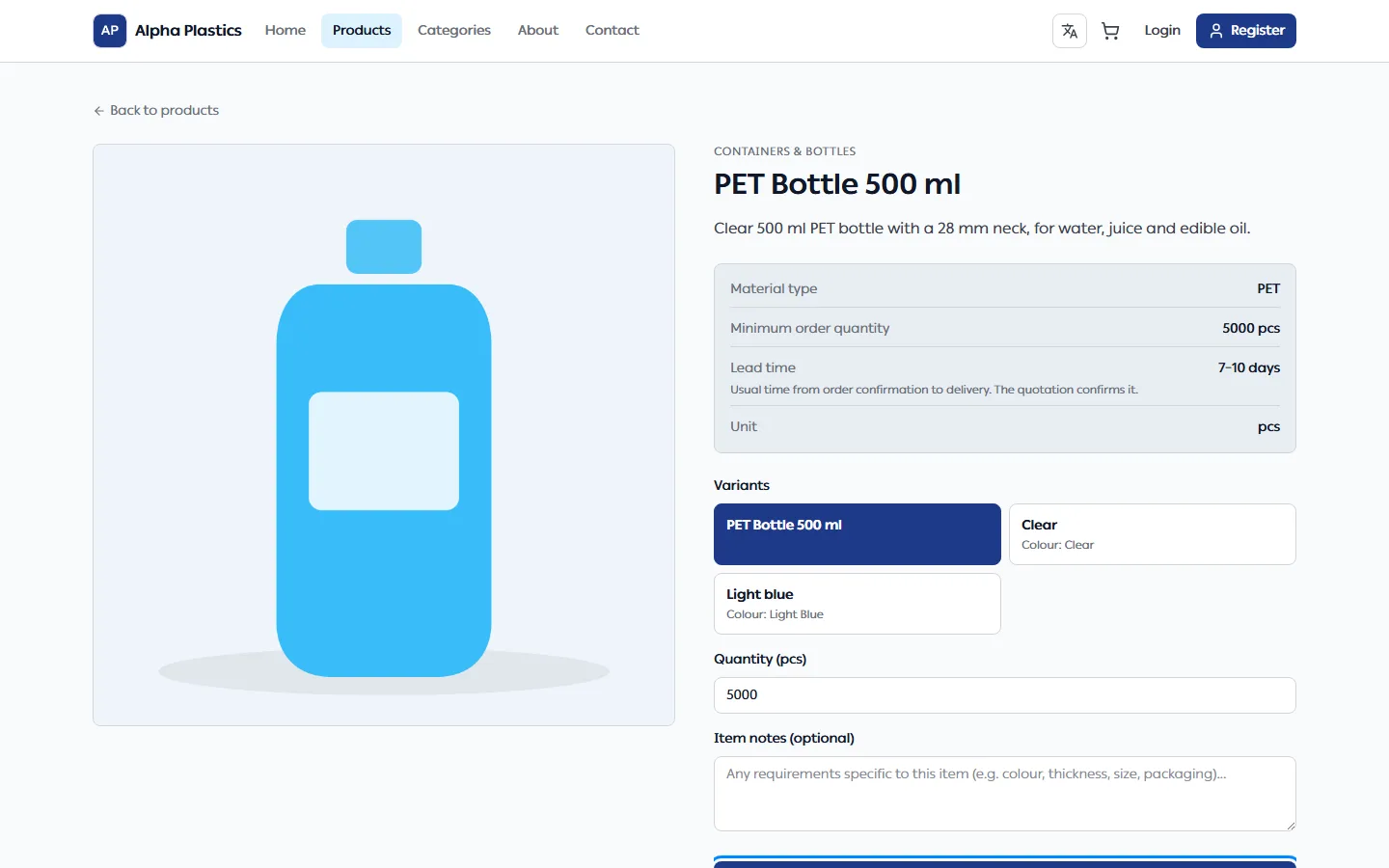
- On the product page, Select a variant and enter the Quantity.
- Click Add to cart. You do not need an account for this: as a guest your cart is kept in this browser. The button then reads Added to cart; change the quantity in the cart.
- Add more products the same way. The cart icon shows your items.
The minimum order quantity is a guide only; you can ask for less. A line below the minimum shows a Below MOQ warning in the cart and at checkout — you can still send the RFQ, and the supplier decides.
Send the RFQ
-
Open the cart and click Review and submit RFQ (or open Cart and go to checkout). As a guest you see Register/Sign in for quote instead: sign in or create an account and you come back to your cart. The products you added as a guest are moved into your account's cart; if one can no longer be ordered, the cart says how many were not added.
-
Fill in the Checkout form. Everything is required except email and notes; your saved profile details are filled in for you:
Section Fields Contact information Company name, Contact person, Phone number, Email (optional) Delivery information Delivery city (not listed? choose Other and type the town in Delivery city name), Delivery address Additional information Notes for the supplier (optional) Company name comes from your profile when you saved one there; you can still change it here. When you send the RFQ, the company name is saved to your profile, so the next checkout has it already.
-
Tick the confirmation box and click Submit request for quotation.
If something is missing or wrong, nothing is sent: the page scrolls to the first field that needs fixing, each such field shows what is wrong, and "Please fix the highlighted fields above" appears next to the button.
Some stores ask for a verified WhatsApp number before you send an RFQ. Checkout then shows "This store asks for a verified WhatsApp number". Click Verify WhatsApp (or submit — the same window opens), enter the code you get on WhatsApp, and the request is sent. Your cart and the details you typed are kept.
What happens next
- You are taken to your new RFQ. It shows New until the supplier quotes.
- The supplier sees your contact and delivery details so they can prepare an accurate quotation.
- You get a notification when the quotation arrives — see review a quotation.
- An RFQ stays open for 7 days. If no deal is made in that time it expires; you can send a new one.
Troubleshooting
| Problem | What to do |
|---|---|
| A required field is highlighted | Fill it in; phone numbers may contain digits, spaces, +, - and brackets. |
| "Please confirm your details before submitting" | Tick the confirmation box. |
| "This WhatsApp number is already verified on another account" | Change the number on Profile (while it is not verified) or contact the store. |
| You cannot send more RFQs | There is a limit of 20 open RFQs per store and 10 submissions per hour. Wait, or close old ones by accepting or letting them expire. |