Manage your account, notifications and language
Keep your details up to date and follow what is happening.
Your account area
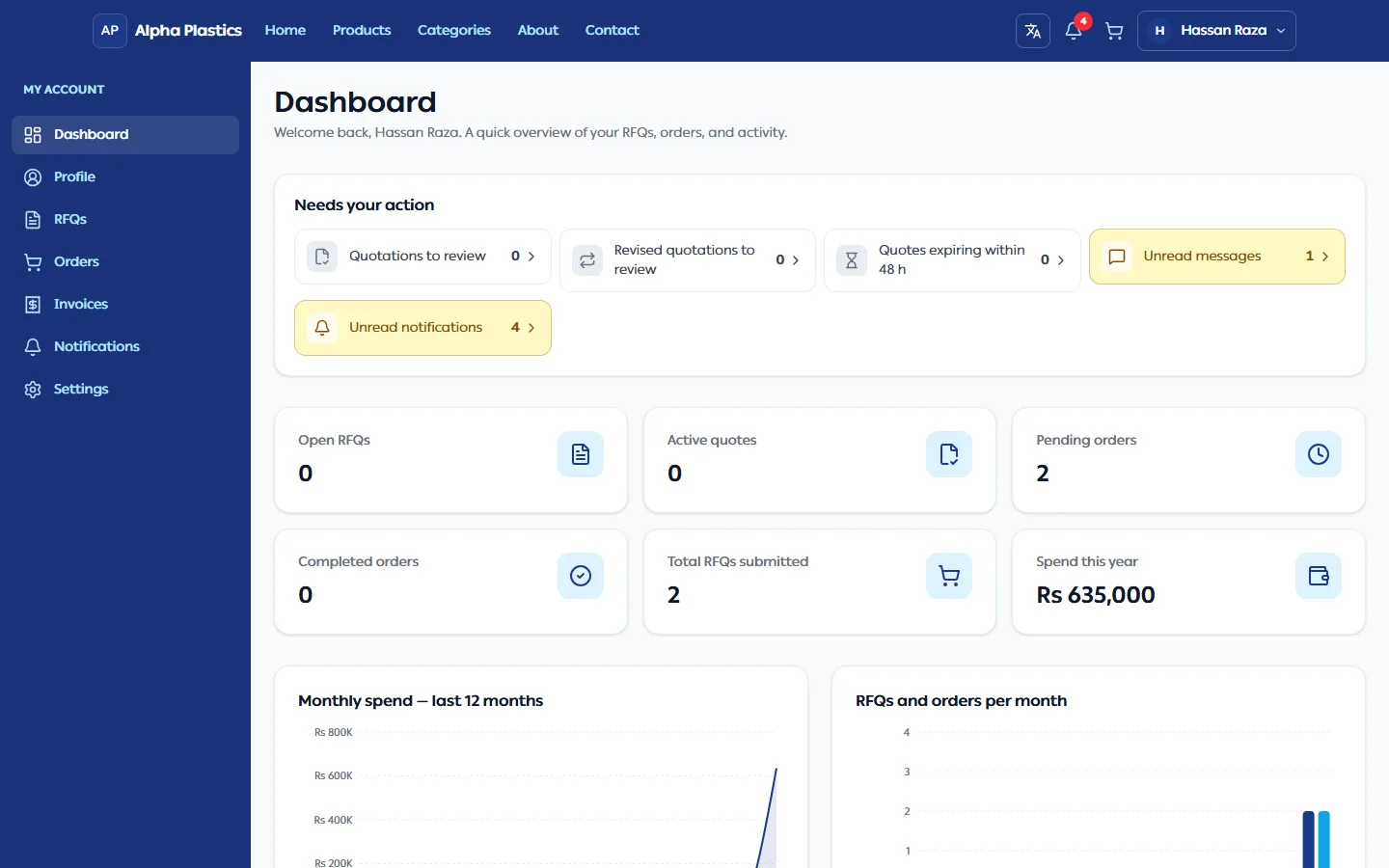
After logging in, click Account to open My account:
| Page | What it shows |
|---|---|
| Dashboard | Needs your action (quotations to review, quotes expiring soon, unread messages and notifications), your RFQ and order counts, spend this year, charts of the last 12 months, recent RFQs and orders |
| Profile | Your details and password |
| RFQs, Orders, Invoices | See the related guides |
| Notifications | All your notifications |
| Settings | Coming soon |
Update your profile
- Open Profile.
- Edit Full name, Company name (optional), Secondary phone, City (or Other + City name) and Delivery address, then click Save profile.
Your Company name fills in the company at checkout. If you leave it empty, checkout asks for it, and the company you enter there is saved here for next time. These details are filled in for you at checkout. 3. To change your password, enter your Current password and New password under Change password, then click Update password.
Your Email is how you login and cannot be changed here. Ask the store if you need a different email.
Verify your WhatsApp number
Your WhatsApp number shows Not verified until you verify it. Some stores ask for a verified number before you can send an RFQ.
- On Profile, click Verify WhatsApp under the number.
- Click Send code via WhatsApp. A 6-digit code arrives on WhatsApp.
- Enter the code and click Verify. The number now shows Verified.
WhatsApp verification may be switched off. Then you do not see Verify WhatsApp or Not verified, and nobody asks you to verify your number.
While the number is not verified you can change it: type the new number, click Save profile, then verify it. Once it is verified you cannot change it yourself; ask the store, which can update it for you.
Notifications
The bell shows unread notifications (quotation received, order confirmed, new message, RFQ expiring soon, …). Click one to open the RFQ, order or invoice it is about. Notifications shows the full list with filters and Mark All as Read.
Language
Use the language switcher in the store header to choose English or Urdu.
Sign out
Open the account menu (your name) and click Logout. You return to the store home page.